QR Code for Google Reviews: A Simple Guide for Local Businesses
QR Code for Google Reviews: A Simple Guide for Local Businesses
The fastest way to get a working QR code for Google reviews is to log in to Google Business Profile on a desktop computer, open the “Ask for reviews” option, and download the QR image Google generates for you. That image links directly to your review dialog. For anything you plan to print long-term, a Place ID link is the more stable choice. Two things to know before you start: the QR generator is desktop-only, and reviewers must be signed in to Google to submit a rating.
Google requires sign-in to post a review, and while most Android users and many iOS users are already signed in, a small share of customers will hit that prompt. Build it into your staff script so nobody is caught off guard.
Key Takeaways
A QR code for Google reviews works best when it uses a Place ID link, gets tested on both Android and iPhone before printing, and is placed where customers are already engaged.
| Point | Details |
|---|---|
| Use desktop for setup | Google Business Profile’s QR generator is desktop-only; log in on a computer to download the image. |
| Place ID for print | Use the search.google.com/local/writereview?placeid= URL for menus, signage, and anything printed long-term. |
| Test before printing | Scan on Android and iPhone to confirm the review dialog opens, not a search results page. |
| No incentives or gating | Google prohibits filtering customers or offering rewards for reviews; use one link for everyone. |
| Repvive for problem reviews | If fake or defamatory reviews appear, Repvive’s attorney-led removal service operates on a pay-per-removal basis. |
Table of Contents
- How to generate a QR code for Google reviews from Business Profile
- Why Place ID links are better for permanent printed materials
- Where to place QR codes and how to phrase your ask
- Troubleshooting common QR and review link problems
- Google’s review policy: what you cannot do
- What actually works in the field
- Negative reviews showing up after you start collecting more?
- Sources
- FAQ
How to generate a QR code for Google reviews from Business Profile
This is the official, fastest route. Do it on a computer, not a phone.
- Go to business.google.com and sign in.
- Select the location you want reviews for.
- In the menu, click “Ask for reviews” (sometimes labeled “Get more reviews”).
- Google displays your short review link and a downloadable QR code image.
- Right-click the QR image and choose Save image as… Save it as a PNG for digital use or request an SVG if your print shop needs a vector file.
- Copy the short link (it starts with
g.page/r/) and keep it somewhere accessible.
Pro Tip: Scan the downloaded QR on both an Android device and an iPhone before you send it to print. Confirm the “Write a review” dialog opens on each, not just a Google search page. If it lands on search results, you used the wrong link.
The short link Google provides is convenient, but it can break if you rename your business or change its primary category. For anything printed in bulk, use the Place ID method below.
Why Place ID links are better for permanent printed materials
A Place ID is a unique, permanent identifier Google assigns to every business listing. Unlike a short link tied to your display name, a Place ID URL survives renames, category changes, and profile edits.
The URL template looks like this:
https://search.google.com/local/writereview?placeid=YOUR_PLACE_ID
How to find your Place ID:
- Open the Google Place ID Finder tool (search “Google Place ID finder” or go directly to the Maps Platform documentation).
- Type your business name and city into the search bar.
- Click your listing. Your Place ID appears below the map pin — it starts with
ChIJ. - Copy it and paste it into the URL template above.
- Paste that full URL into a QR generator that outputs PNG or SVG files.
Pro Tip: Short URLs produce simpler, less dense QR patterns, which scan more reliably after printing. If your Place ID URL feels long, run it through a URL shortener first, then generate the QR from the shortened version.
Place ID links open the star-rating dialog directly, skipping the normal search flow entirely. That matters on menus, table tents, and window clings where a customer has maybe five seconds to act.
Where to place QR codes and how to phrase your ask
Placement and wording do most of the work. The QR code itself is just a door.
High-conversion placements:
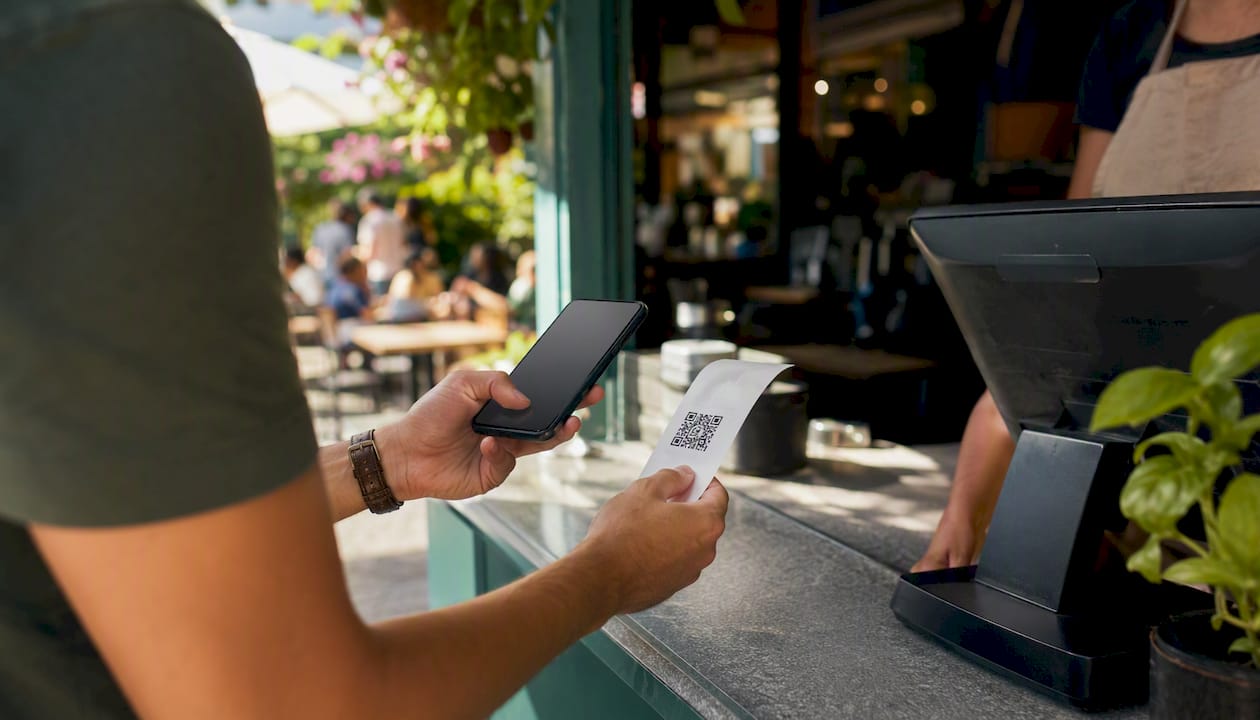
- Receipts and invoices. The customer just paid and the experience is fresh. A single line at the bottom (“Loved your visit? Scan to leave us a Google review”) is enough.
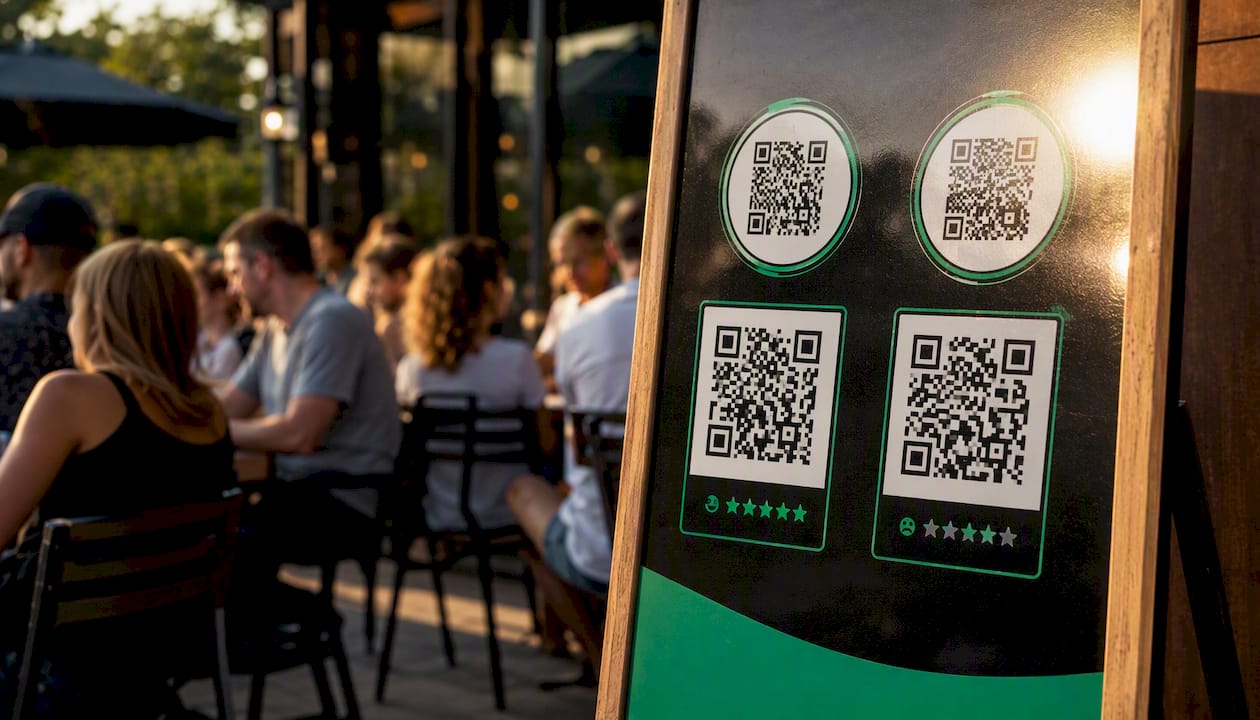
- Table tents and counter cards. Visible at the moment of service, no staff effort required.
- Thank-you emails. Send within 24 hours of service. Embed the QR image and include the raw link as a fallback for email clients that block images.
- Checkout screens. A QR displayed on a tablet or POS screen during payment gets scanned while the customer is still present.
Short CTA copy that works:
- “Scan to share your experience on Google.”
- “Happy with your visit? 30 seconds on Google means the world to us.”
- “Leave us a review — scan the code below.”
Keep it one sentence. Anything longer gets ignored.
Printing specs: Export at minimum 300 DPI for print. PNG works for most printers; SVG is preferable for large-format signage. Leave a quiet zone (white border) of at least four modules around the code. A QR printed smaller than 1 inch square often fails to scan after ink bleeds slightly on paper.
Tracking scans: Dynamic QR services wrap your review link in a branded landing page, let you swap destinations without reprinting, and provide scan analytics. If you want to know which placement converts best, a dynamic wrapper with UTM parameters is the cleaner approach than a static QR. You can also append ?utm_source=receipt&utm_medium=qr to your review link before generating the code, then monitor traffic in Google Analytics.
Pro Tip: Plaudit’s free QR generator and similar tools output both PNG and SVG with no account required. Download both formats and store them with your brand assets.
Troubleshooting common QR and review link problems
QR opens a Google search page instead of the review dialog. You likely used a business name search URL rather than the Place ID or short review link. Regenerate using the correct URL template.
Customer sees a sign-in prompt. Google requires a Google account to post a review. Coach staff to mention it: “You’ll need to be signed in to Google — most phones do this automatically.” This reduces drop-off.
QR scans but lands on a third-party preview page. Some QR apps intercept the link and show a preview. Test with the device’s native camera app, not a third-party scanner. If the native camera still shows a preview, check whether a dynamic wrapper is redirecting incorrectly.
Print checklist before sending to the printer:
- Contrast ratio is high (dark code on white or light background)
- Quiet zone is intact on all four sides
- File resolution is 300 DPI or higher
- Rescan a printed proof before the full run
Google’s review policy: what you cannot do
Google is specific about what crosses the line, and violations can get reviews removed or your listing suspended.
This is called review gating, and Google explicitly prohibits it. Sending a satisfaction survey first and only forwarding happy respondents to the public Google review form is a violation, even if the survey itself is legitimate.
Compliance checklist:
- One QR code, one link, shown to every customer equally
- No “leave a 5-star review and get 10% off” offers
- No pre-screening step before the public review prompt
- Review the Google Business Profile policies annually, as they update
What actually works in the field
The businesses that see the fastest review velocity share one habit: they ask at the right moment, not just in the right place. A QR on a receipt works better when a staff member says “We’d really appreciate a Google review if you have a second” at handoff. That verbal cue triples the chance someone actually scans.
The most common trap: printing a QR on menus or window clings without using a Place ID link, then renaming the business six months later. The short link breaks, the QR becomes useless, and nobody notices for weeks. Use Place ID links for anything that stays up longer than a month, and check the link on the first of every month.
One more thing worth tracking: if you use a dynamic wrapper with scan analytics, compare conversion rates by placement. Receipts and checkout screens almost always outperform window clings. That data tells you where to concentrate your print budget.
Negative reviews showing up after you start collecting more?
More reviews means more visibility, and sometimes that surfaces fake or defamatory content that was always there. Repvive’s attorney-led Google review removal service is built for exactly that situation. The legal team crafts a customized claim for each review and works through direct channels to get it removed. There are no upfront fees — you pay only after a successful removal.
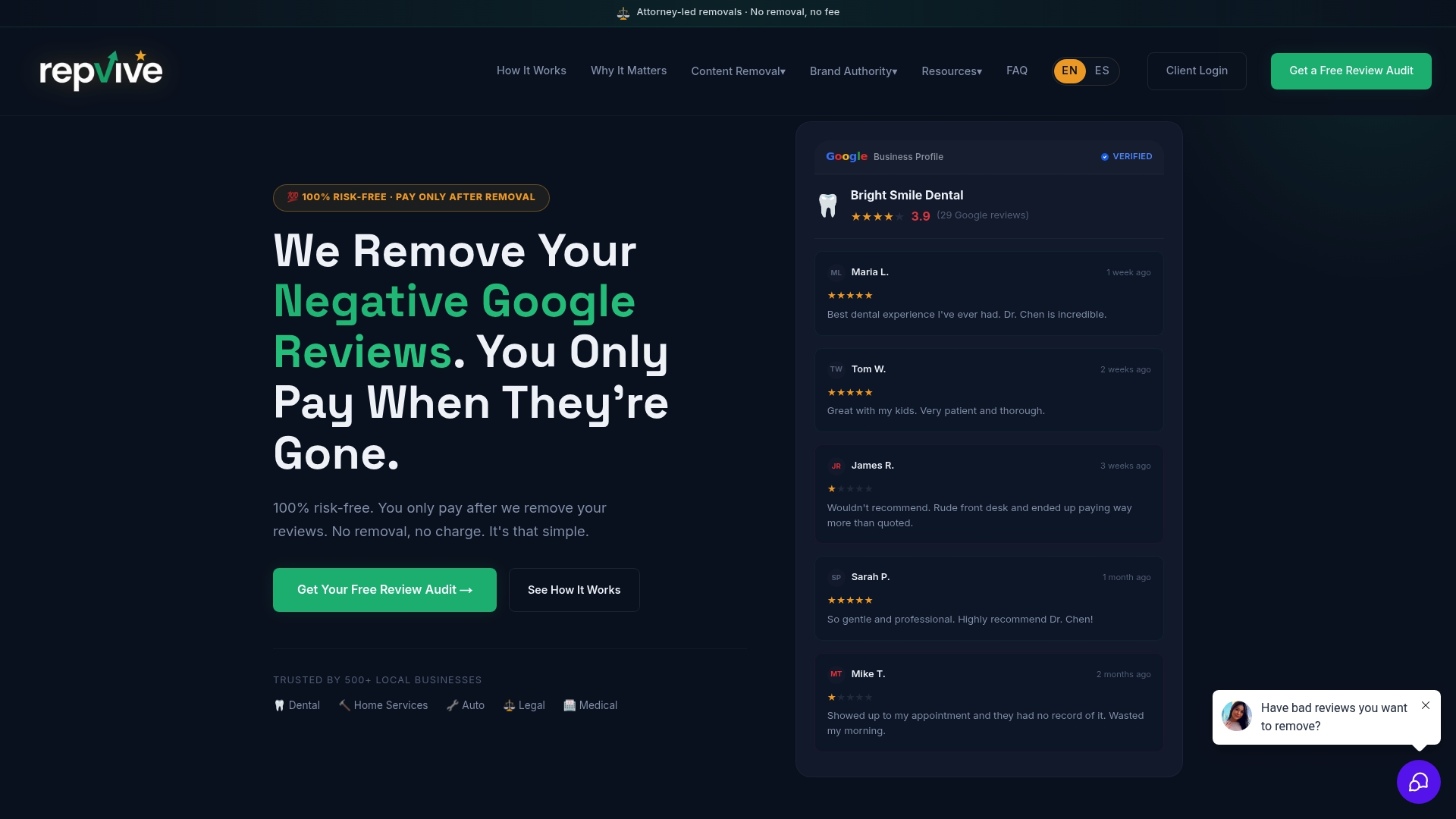
If you’re not sure where your profile stands, start with a free Google Business Profile audit to identify any problematic reviews before they compound. From there, Repvive can handle removal while you focus on collecting the legitimate reviews your business has earned.
Sources
- Create a Google link or QR code to request reviews - Google Business Profile Help
- Free Google Review QR Code Generator
- Free Review QR Code Generator - Get More Google Reviews | QR Cake
FAQ
How do I get a QR code for Google reviews?
Log in to Google Business Profile on a desktop computer, click “Ask for reviews,” and download the QR image Google provides. Alternatively, find your Place ID and paste the write-review URL into a free QR generator.
How do I generate a review link using my Place ID?
Find your Place ID at the Google Place ID Finder, then build the URL: https://search.google.com/local/writereview?placeid=YOUR_PLACE_ID. Paste that into any QR generator.
How do customers scan a QR code to leave a review?
Customers open their phone’s native camera app, point it at the QR code, and tap the link that appears. They must be signed in to a Google account to submit the review.
How do I get more Google reviews for my business?
Place your QR code at high-engagement moments: receipts, checkout counters, and thank-you emails sent within 24 hours of service. A brief verbal prompt from staff at handoff significantly increases scan rates.
What should I do if a fake or unfair review appears?
Do not respond with an incentive or try to bury it with fake positive reviews. Repvive’s Google review removal service uses attorney-led legal claims to remove defamatory or policy-violating content, with no upfront fees.